
Click to add text
Add heading
Add subheading
Add a little bit of body text
Add curved text
- Default cliparts
- Custom cliparts
Upload
Image url
Webcam
Pixabay
Unsplash
Pexels
Freepik
You need to be logged in to upload images!
Click or drop images here
Accept file types: png, jpg, svg, pdf
Max file size: {{settings['nbdesigner_maxsize_upload']}} MB
Min file size: {{settings['nbdesigner_minsize_upload']}} MB
Max upload files: {{settings['nbdesigner_max_upload_files_at_once']}}
Clear all uploaded images
webcam
Facebook
Document colors
Default palette
Color palette
{{settings.product_data.product[$index].product_width + ' ' + settings.nbdesigner_dimensions_unit}}
{{settings.product_data.product[$index].product_height + ' ' + settings.nbdesigner_dimensions_unit}}
{{stages[currentStage].states.boundingRealSize.size}}
Drop to replace
{{stages[currentStage].states.coordinates.left}} {{stages[currentStage].states.coordinates.top}}
{{stages[currentStage].states.rotate.angle}}
Cut line
Safe zone
Warning
{{stages[currentStage].config.name}}
Out Of Stage
Image Low Resolution
Share this design
- Keyboard shortcuts
- About
| Ctrl +A | Select all layers |
| Ctrl +D | Deselect all layers |
| Ctrl +E | Clear all layers |
| Ctrl +Z | Undo changes |
| Ctrl +Y | Redo changes |
| Ctrl +L | Show/hide Bleed line |
| Ctrl +R | Show/hide Ruler |
| Ctrl +H | Align layer horizontal center |
| Ctrl ++ | Zoom In stage |
| Ctrl +- | Zoom Out stage |
| Ctrl +0 | Fit stage with viewport |
| Ctrl +1 | Resize stage to real size |
| Ctrl +] | Bring layer forward |
| Ctrl +[ | Bring layer backward |
| Ctrl +O | Load your designs |
| Ctrl +B | Make your text bold |
| Ctrl +I | Italicize your text |
| Ctrl +G | Group layers |
| Ctrl +P | Duplicate layers |
| Alt +U | Make your text UPPERCASE |
| Alt +L | Make your text lowercase |
| Alt +← | Move the selected layers to left 1px |
| Alt +→ | Move the selected layers to right 1px |
| Alt +↑ | Move the selected layers to top 1px |
| Alt +↓ | Move the selected layers to bottom 1px |
| Alt + | Free transform |
| Shift ++ | Zoom out selected layers |
| Shift +- | Zoom in selected layer |
| Shift +G | Show/hide Grid |
| Shift +D | Show/hide stage dimensions |
| Shift +L | Clear all guidelines |
| Shift + | Centered scaling |
| ← | Move the selected layers to left 10px |
| → | Move the selected layers to right 10px |
| ↑ | Move the selected layers to top 10px |
| ↓ | Move the selected layers to bottom 10px |
| Delete | Delete selected layers |
| V | Disable drawing mode |
| B | Enable drawing mode |
| Esc | Quit text editing |
| Ctrl +Shift +] | Bring layer to front |
| Ctrl +Shift +[ | Send layer to back |
| Ctrl +Shift +V | Align layer vertical center |
| Ctrl +Shift +I | Import Design |
| Ctrl +Shift +E | Export Design |
| Ctrl +Shift +S | Save Design for later |
| Ctrl +Shift +O | Load Your Design in Cart |
| Ctrl +Shift +G | Ungroup |
| Ctrl +Shift +L | Clear all stages |
| Ctrl +Shift +< | Decreate font size |
| Ctrl +Shift +> | Increate font size |
Copyright © 2022. Bennett's Designs
All Rights Reserved
Powered by Printcart version 2.4.7
Image upload terms
Customer Uploaded Artwork Agreement (Terms & Conditions)
Ownership & Permission. By uploading any image, logo, photo, or design (“Artwork”), you represent and warrant that you own the Artwork or have the legal right to use it for reproduction on the product(s) you order. You agree the Artwork does not infringe any copyright, trademark, trade dress, or other rights, and does not violate any privacy or publicity rights.
License to Produce Your Order. You grant us a limited, non-exclusive, royalty-free license to use, reproduce, resize, and make minor edits to the Artwork as reasonably necessary to prepare files and fulfill your order.
Quality & Accuracy. You are responsible for the quality of the uploaded file and for verifying spelling, layout, sizing, and placement. Screen colors may vary from printed output. Low-resolution or screenshot images may print blurry or pixelated.
Proofs (If Provided). If a proof is provided, you must review and approve it before production. Once approved, we are not responsible for errors visible in the proof.
Returns. Products made using customer-provided Artwork are made-to-order and are not returnable/refundable unless the item is defective/damaged or we produced it differently than the approved design.
Restricted Content & Refusal. We reserve the right to reject Artwork or cancel orders that include illegal, hateful/harassing, explicit, or otherwise inappropriate content.
Indemnification. You agree to defend and hold us harmless from any claims, damages, or expenses (including reasonable attorney fees) arising from the Artwork you provide, including infringement or rights claims.
By continuing, you acknowledge and agree to these terms.
Delete All Layers
Are you sure you want to delete all layers?
Delete Selected Stage
Are you sure you want to delete selected stage?
Clear All Stages
Are you sure you want to clear all stages?
Replace stage content
By selecting another template you are deleting all the content on the current stage. To restore, click Undo button.
Crop image
Guidelines
Cut Line
This is where we aim to trim the product. The actual line can vary due to the trimming process.
Safe zone
Keep text and important imagery within this line to ensure it does not get cut off during trimming.
My design
Save as new designs or overwrite last design
New design
My designs
My designs in cart
Grid View
{{$index + 1}}
Warning
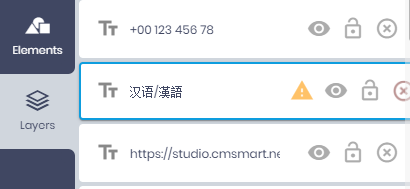
Some fonts you have chosen can not show some of the text you have added. Please choose fonts that is compatible with your language.
Go to <b>Layers tab</b>, check all layers have the exclamation mark:
Your Information
All changes saved
- Double click to edit text
- Right click on selected layers to show context menu
Drag & drop image from sidebar into shape layer to replace the current image.

- Double click masked photo to turn on mask editing mode.
- Click Apply mask icon or click outside selected mask to turn off mask editing mode.